

How to Make a Flying Broom AI Video From a Pet Photo
Make a flying broom AI video from one pet photo. Choose a clear outline, check the template and credit quote, and review your silent fantasy clip.
Start with a clear still photo of your pet. AI Genjutsu’s fixed Flying Broom template uses it for a fantasy scene in which your pet takes off on a broom and flies over rooftops at night.
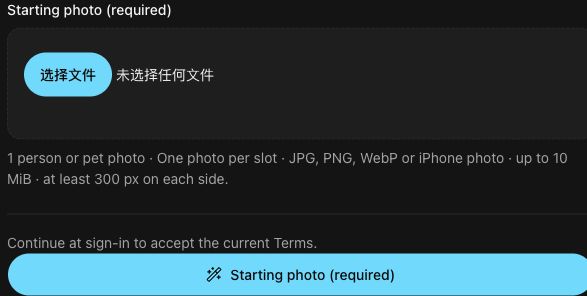
The Flying Broom template before upload, with the photo requirements and the current Terms notice.
Choose one clear photo of your pet
Use a photo of your own pet, with permission to upload the image. A full-body or waist-up photo works as a starting point. Look for a clear view of the face and an outline you can distinguish from the background. Choose a different photo if furniture hides the legs or tail, or if several animals are in the frame. An everyday photo of your pet sitting or standing is enough. Look for even light so you can see the details around its eyes and ears.
Check the source file before paying
Before uploading, open the actual file you plan to use rather than relying on its thumbnail. Zoom in on your pet’s eyes and the edge of its fur. A sharp face cannot compensate for a body hidden behind a chair. If the file fails the upload requirements, check its size and pixel dimensions in your device’s file or photo information. Pick a supported copy that meets the limits; enlarging a blurry thumbnail will not recover missing detail. For your first flying broom AI video, keep the original photo beside the downloaded clip. Judge whether your pet is recognizable before deciding whether another paid attempt is worthwhile.
Open the template and handle sign-in
Open Flying Broom (My Ride Is Here) and sign in if needed. If you see Continue at sign-in to accept the current Terms, select Continue to go to the sign-in page. Review the current Terms there and proceed only if you agree. Do this before uploading or generating.
The service is for adults 18 and over. AI Genjutsu and its providers process the photo. The privacy policy says the source photo is deleted when the job ends and videos are private by default. The policy treats account and payment records separately. See the privacy policy and acceptable use policy.
Upload and check the credit quote
Select Starting photo and choose one JPG, PNG, WebP or iPhone HEIC/HEIF file. It can be up to 10 MiB and must be at least 300 pixels on each side.
The current output is a five-second, silent MP4 at 720p in vertical 9:16 format. The template currently quotes five credits per video. Confirm the format and the live quote before selecting Generate.
Follow the request and download your video
Watch the progress on the same task while the request is pending. If you leave the page, return to the existing job from My videos. Download the MP4 when it’s ready.
Watch the whole flight
Play the downloaded video from takeoff to the last frame. Check the face, ears, legs, tail and outline as your pet moves. Look at where the body meets the broom and watch for flicker, sudden changes in the background or awkward cropping. Pause on a frame where your pet is clearly visible and compare its markings with the original photo. If you share the clip, let viewers know it’s an AI-generated fantasy.
This AI-assisted guide comes from the team that operates AI Genjutsu. We checked the interface without uploading a photo or generating a video. We did not test output quality for this guide.