

How to Make an AI Aging Video From One Photo
Make a short aging-effect video from one portrait, with photo requirements, current template options, and download steps.
AIGenjutsu’s AI Aging Filter turns a single portrait into a short aging-effect video. It applies a fixed older look for entertainment. The result is an AI impression, not a medical or scientific prediction of how someone will age.
-
Choose a clear portrait. Use a photo of yourself or someone who has agreed to the edit. Choose one clearly visible, front-facing person in even light. Avoid group shots, blur, dark exposure, heavy filters, sunglasses, and covered faces.
-
Check the file requirements. The template accepts JPG, PNG, WebP, or an iPhone photo. The file must be 10 MiB or smaller, with at least 300 pixels on each side. Use one photo showing one person, with one photo per slot.
-
Add your starting photo. Open the AI Aging Filter and upload your portrait using the Starting photo (required) control. This is the action label shown before a photo is added.
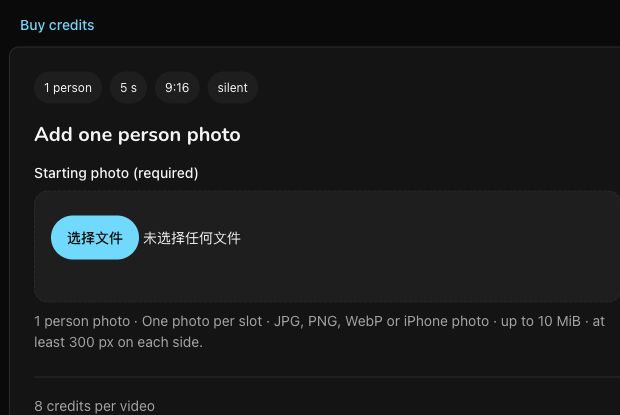
AI Genjutsu interface checked on 11 November 2026, before a photo was uploaded. This is an interface screenshot, not a generated video frame.
-
Review the format and price. The page currently lists a 5-second, vertical 9:16, silent video in 1080p MP4 format, at 8 credits per video. Check the live quote and make sure you have enough credits before submitting.
-
Generate the video. After uploading your photo and reviewing the quote, press Generate, following the template’s instructions. Watch the output area for progress and the finished video. You can leave the page and return to the same task later.
-
Watch and save it. When the video is available, review the effect and download the MP4 if you want to keep it. You can also find it later in My videos.
Can I choose a particular age? No. The template has a fixed older look, with no age slider or target-age setting. The impression varies with the starting photo.
What if my photo is not accepted? Recheck the file type, file size, and minimum dimensions in step 2. Make sure you have added the required starting photo and that it shows one person. If the face is hard to see, choose a clearer, evenly lit portrait.
Disclosure: AI drafted and edited this article, with independent AI factual review. It is published by the product operator. The interface was checked on 11 November 2026; no subject photo was uploaded, no result was generated, no credits were purchased, and output quality was not tested.
AI Aging FAQ
How accurate is the AI aging filter?
It is for fun, not a prediction. The older look is an AI impression and isn't medical or scientific.
What photo should I upload for an AI aging filter video?
Use one sharp, evenly lit photo of one person. Works best: one person, face forward, even light, no sunglasses. JPEG, PNG, WebP or iPhone photos (HEIC/HEIF) up to 10 MiB per photo work, at least 300 px on each side.
How much does AI Aging cost?
8 credits per video, shown before you generate. A 40-credit pack costs $5.99 (excluding tax) and covers five videos.
What do I get?
A 5-second, 1080p, vertical 9:16 MP4 without sound, made with Kling 2.6 Pro and Seedream 5.0 Flash. Download it from My videos and add your own music when you post.
Can I choose the target age?
The template uses a fixed older look. There is no age setting to choose; the AI impression varies with the photo.
Why is it 8 credits?
It uses a two-frame 1080p video step that costs more than the 5-credit templates.
What if my AI aging filter video fails?
Your 8 credits come back automatically. A successful video you don't like is not refunded, so check the photo tips first.