

How to Make a Toy Car to Real Car AI Video From One Photo
Make a toy car to real car AI video from one photo. Prepare the shot, check the format and credit quote, then download your silent vertical MP4.
Make a toy car to real car AI video from one clear photo of a model you already own. AI Genjutsu’s fixed template is designed for a playful, fictional full-size reveal. Your photo guides the car’s appearance; review the clip before adding your own caption or music for sharing.
1. Photograph one toy car clearly
Choose one die-cast or plastic toy car and set it on a plain surface in even light. Photograph it from the side or a three-quarter angle, with the whole body, wheels, and windows visible. Fill much of the frame without cutting off the wheels.
Before uploading, enlarge the photo and check that the car looks sharp. If a hand covers the body or packaging competes with it, take another shot. Move other toys out of view and avoid huge brand logos that distract from the car’s shape.
Accepted files are JPG, PNG, WebP, and iPhone HEIC/HEIF, up to 10 MiB, with at least 300 pixels on each side.
2. Set up your toy car to real car AI video
Open Toy car to real car AI video. Sign in and complete any requested Terms step yourself, then add one image to the object-photo upload form.
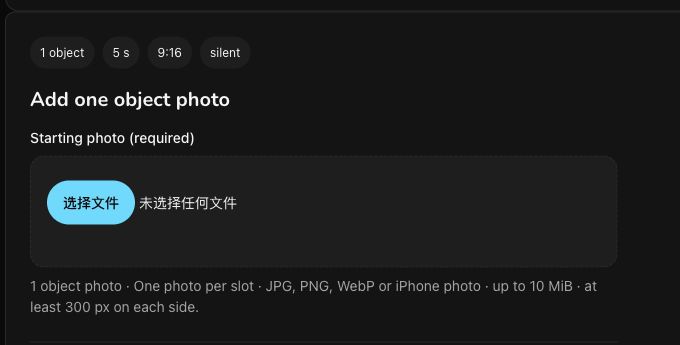
Screenshot of the empty upload form and its format and file requirements. No toy photo or generated video is shown.
The template currently specifies a five-second, 1080p, vertical 9:16 silent MP4. The scene is fixed: there are no custom prompt, music, scene, or color controls. The page currently displays 8 credits per video; recheck the live quote and your available credits before proceeding.
3. Generate and review the complete clip
Choose Generate when you are ready. Watch the complete clip to judge whether the car remains recognizable as a version of your toy. Look at the wheels, body shape, and transitions for sudden jumps or deformation that spoil the reveal.
The effect aims to carry over color and body shape, but wheels, lettering, and other details can change. Treat it as a creative interpretation of your photo, with no guaranteed brand or model match.
If something looks wrong, choose one photo change for the next attempt: clearer focus, a less crowded surface, or framing that includes the whole car. Keep the original so you can compare inputs. Each new generation uses the credits displayed for that request.
4. Download and finish your post
Download an available clip from My Videos. Play the saved file before posting, checking that you are happy with the full transformation and the vertical framing.
The service’s clip is silent. Add music and your own caption in your posting app if desired, keeping text clear of the car. “From desk toy to dream garage” is one caption idea; describe the reveal as fictional or AI-generated so viewers understand what they are seeing.
Quick FAQs
Can I use a real car photo?
Use a toy car for this workflow. The fixed template is built for a toy-to-real transformation, so a real car is not the intended starting point.
Can I change the scene or add sound here?
The template has no scene or music controls. Improve the source photo for another attempt, and add sound later in your posting app.
Why does the car look different?
The reveal is generative, so recognition and small details can vary. A clear photo helps define the intended subject; it does not guarantee exact logos, wheel designs, or realism.
What should I fix in an unclear photo?
Retake it in even light, check focus on the car, and remove obstructions. Confirm the file meets the size and resolution requirements before uploading again.
Disclosure: AI-drafted, AI-edited, and AI-reviewed in association with the AI Genjutsu product team. No new photo was uploaded or video generated for this article.