

How to Make a Times Square Billboard AI Video From a Photo
Make a Times Square billboard AI video from one photo. Prepare a clear person or pet image, check the fixed scene and share a clearly fictional clip.
A Times Square billboard AI video uses one photo of a person or pet to make a short clip set in a fictional city square. The photo supplies the subject for a giant screen inside the scene. If you’re making a birthday greeting or a keepsake, pick a photo with a face you’d recognize even when it’s small in the frame. Plan to add any personal message after you have a clip worth sharing.
What the Times Square billboard AI video template makes
The template’s scene is fixed. Its description has the camera start among a crowd, tilt up, and push toward the billboard as taxis pass below. That’s the intended motion. How the subject looks and moves can vary. Use the example on the page to see how much of the vertical frame the city takes up before the camera reaches the screen.
The listed output is a five-second, silent MP4 at 720p in vertical 9:16 format. The template provides a single setting with no controls for custom billboard text, a different location, or music. It creates a fictional AI-generated scene. The service makes no real billboard booking, and the video represents no real ad placement or brand endorsement. See the Times Square Billboard template.
Pick a photo that will read on the billboard
Choose one photo showing one person or one pet. You must be at least 18 to use the service. Choose a photo of yourself, another adult who has agreed to its use, or your own pet, and make sure you have permission to submit the picture. Do not upload photos of anyone under 18, celebrities, or other public figures. Look for a front-facing subject with a sharp, evenly lit face. Leave out group shots and collages. For a person, skip frames with sunglasses or strong shadows across the eyes. For a pet, look for details you’d recognize at a glance, such as a white muzzle or the line between dark ears and light fur.
If you’re choosing between two photos, look at them as small thumbnails on your phone. A favorite photo of a dog at the far end of a trail may show the setting beautifully while giving you little of the dog’s face to work with. A closer picture with a plain background and a natural expression can give the model a clearer reference. If you crop the original, keep the features that distinguish the subject and check that they’re still sharp.
If you’re taking a picture specifically for the clip, try shooting at eye level in soft, even light. Leave room around the person’s hair or the pet’s ears so the whole outline is visible. Check the photo before you leave that spot so you can take another if the eyes are out of focus.
The photo input accepts JPEG (JPG), PNG, WebP, and iPhone HEIC or HEIF files up to 10 MiB, with at least 300 pixels on each side. Check dimensions after cropping or exporting. A file can meet the dimensions and still be too blurry to make a good reference. If a compressed copy has lost facial detail, look for the original before you upload.
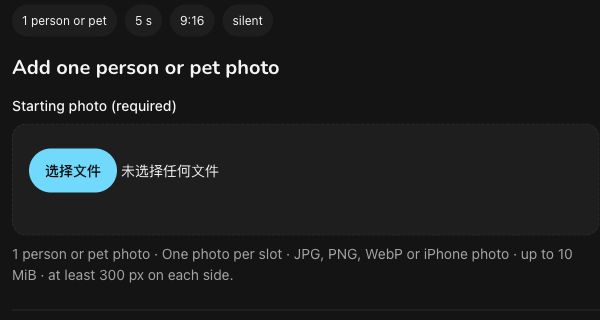
The template’s empty photo input shows the file requirements and basic video format. No photo is selected.
Submit the photo and return to the same task
-
Open the template. If the generation area shows “Continue at sign-in to accept the current Terms,” select Continue only if you want to proceed. Review the required Terms yourself before deciding whether to accept them.
-
In Add one person or pet photo, use Starting photo (required) to select your file. Check that you chose the intended version, especially if you exported a crop or have several similar shots.
-
Read the credit quote. The page currently displays 5 credits per video. Confirm the quote shown for your request before selecting Generate.
-
Follow the progress under Your Times Square billboard AI video. The template says you can leave the page and return to the same task. If you’re unsure whether the request finished, look up that task before starting another one.
-
Open My videos to find the completed task and download its MP4. If the task reports a problem, read the status and any instructions shown for that request before deciding whether to submit again.
Check what happens between the first and last frame
Play the downloaded file through once at normal speed. On the first watch, notice when you can recognize the person or pet and whether the face stays recognizable as the camera approaches the screen. On a second watch, look at details that could drift during the move. Check features such as a person’s glasses or hairline, or a pet’s eyes, ears, and markings. Compare any questionable moment with the exact file you uploaded, especially if you made a crop. If the crop already hid a dog’s ear or cut into a person’s hair, that gives you a specific thing to fix in the source. If the feature was clear in the photo and changes shape mid-clip, judge that change in motion before deciding whether the clip is usable.
Watch the outline of the billboard and what happens where the subject meets its edges. If the screen bends abruptly or the face stretches, pause there, then replay that stretch in motion. Check whether distractions in the crowd or taxis draw attention away from the billboard. Pause on the last frame and compare the closest view with the reference. A good-looking thumbnail only tells you what one instant looks like.
Choose another source photo if the subject was too small, dark, or blurry and you have a clearer one. Check the quote before any new request. If a distortion changes a feature that matters to you, you may prefer to share the original picture on its own.
Finish the greeting in an external editor
Import a usable MP4 into a video editor if you want to add a message. For a birthday, try a short line like “Happy birthday, Maya” beside or below the billboard, wherever the text clears the subject throughout the shot. Play the export on a phone and check that the words are readable against the changing lights. If the preview in your posting app covers the text with buttons or a caption bar, move the overlay inward and check again. Keep the video project vertical so viewers can see the full shot and the text you placed around the subject.
The template clip is silent. If you add a track in another app, use music you have permission to use on the platform where you’ll share it. Play the export with the sound off, too, so you know the greeting still makes sense. Label the video as a fictional AI-generated scene where viewers can see that context, including when the clip is shared apart from your original post.
Common questions
Can I give people longer to read a message?
The template makes a five-second clip. For a longer greeting, give the message its own card before or after the exported clip in your video editor. That leaves the moving shot open for the reveal.
Can I feature both of my pets?
The starting photo is for a single subject. If you want a greeting for both pets, they can each be featured in a separate clip and those clips can be combined externally. Each generation request has its own displayed quote.
This guide is affiliated with AI Genjutsu and its operator. GPT-6.1 Terra drafted it, and an independent AI copyeditor revised it. Editorial checks covered the saved current public interface and first-party source material. No new media was generated and no end-to-end tests were run. A separate independent AI reviewer checked the final text and interface screenshots for factual accuracy before publication.