

How to Make a Shaking Head AI Video From a Pet Photo
Make a shaking head AI video from one pet photo. Choose a clear face, check the fixed template and credit quote, then review your silent reaction clip.
Start with one clear photo of your pet. The Shaking Head template uses it in a fixed bobbing and head-shake scene. The current output is a silent, five-second MP4 at 720p in vertical 9:16. AI Genjutsu’s Shaking Head template
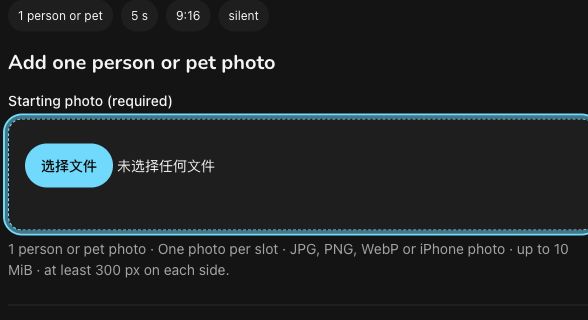
This cropped screenshot shows the empty photo input and its requirements. It shows no account details, uploaded photo or generated video.
1. Choose one clear pet photo
Use a photo of your own pet that you took or have permission to upload. Pick a front-facing shot with the head and shoulders visible, room around the ears, and a clear view of the eyes and muzzle. If a toy, hand or another pet obscures the face, choose a clearer shot.
The template accepts one file showing one subject. Use a JPG, PNG, WebP, HEIC or HEIF file up to 10 MiB, with at least 300 pixels on each side. If the file is rejected, check the format, file size, width and height before trying another.
You must be 18 or older to use the service. For a human photo, use a picture of yourself or another consenting adult. Photos of minors, celebrities and public figures are prohibited. Acceptable use policy
2. Sign in and follow any Terms notice
Sign in if needed. If the form displays a notice about Continue, follow its link to sign-in and review the current Terms. Select Continue there if you agree, before trying to select or upload a photo or generate a clip. Follow the notice whenever it appears, even if account navigation is already visible.
Remove private details from the photo before uploading. The service and its providers process the photo. The privacy policy says the uploaded source is deleted when the job ends, including if it fails. Outputs are private by default, and account and transaction records are separate. Privacy policy
3. Check the quote and start the task
Once the photo and eligibility requirements are met, select the photo. The template currently lists five credits. Check the live quote and output details before each request, then select Generate if you want to proceed.
If the job is pending, check its progress before starting another request that may cost credits. When the clip is ready, download it from My videos.
4. Watch the whole clip before sharing
Play the full clip and compare it with the source photo. Watch the eyes, ears, muzzle and head outline as your pet moves. Check the background for distracting motion or distortion that a thumbnail might miss.
If the pet is hard to recognize, see whether the source photo cropped an ear or hid part of the face. You can consider a clearer photo after checking the new quote. A new attempt can still miss details.
Watch the clip on your phone before sharing it. Make clear that the movement is AI-generated if viewers could mistake it for a real recording. Add any caption or sound in a separate posting or editing app.
We operate AI Genjutsu and used AI to help prepare this guide. We checked the interface and screenshot. We did not generate a video or test output quality for this guide.