

How to Make a Red Carpet Arrival Video From One Photo
Make a playful red carpet arrival video from one photo: choose a suitable image, review the clip details, generate, and download the MP4.
A short red carpet entrance can add a playful opening to a social post or event greeting. AI Genjutsu’s Red Carpet Arrival template starts with one photo. Use it as an imaginative AI scene for your greeting or post.
Before you start
Choose a photo you have permission to upload, with one person and a clearly visible face and body. Even lighting is helpful. Avoid group shots, dark or blurry images, and photos where the person is very small in the frame.
Check that your file meets the page’s requirements:
-
JPG, PNG, WebP, or an iPhone photo.
-
Up to 10 MiB.
-
At least 300 pixels on each side.
A clear source gives you a useful starting point, but it does not guarantee an identical face or outfit in the generated video.
The template sets the overall scene. The checked interface has no custom dress, venue, or camera controls, so consider whether its red carpet theme suits your idea before submitting a photo.
Make your entrance
- Open the template and add your photo. Visit the Red Carpet Arrival template. The page title is Red carpet AI video. Add your image to the required Starting photo slot.
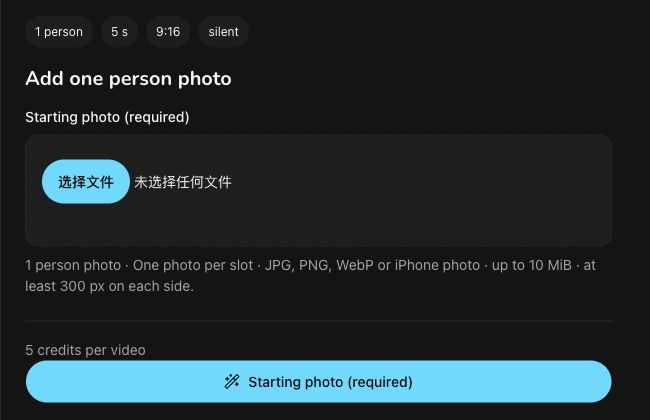
The real photo input area, checked November 12, 2026. This is an interface screenshot, not a generated result.
-
Review the clip details and quote. On November 12, 2026, the form displayed a five-second, silent MP4 in vertical 9:16 format at 720p, with a quote of 5 credits per video. Read the actual details and credit quote in your form before submitting; the quote may change. Consider whether a short vertical clip fits the post or greeting you have planned.
-
Generate when ready. The empty form’s button reads Starting photo (required). After preparing your photo, follow the current Generate button on the page. Leave time to review the finished clip before an event or scheduled post; this guide makes no fixed turnaround promise.
-
Find and inspect the result. Look for progress and the completed clip under Your red carpet AI video. You can return to the same task or find your work through My videos. Watch the completed MP4 and download it when ready.
Before you share
Check the person’s appearance, movement, and framing against what you intended. The official sample is AI-generated, and your result will differ. Its footage is not reproduced here as an example result.
The clip is silent. You can add your own greeting text or audio later in a separate editor; those additions are not built-in features promised by this template. Preview the finished edit once more before posting.
About this guide
GPT-6.1 Terra drafted this guide; it was independently AI-edited and independently reviewed by Codex for facts, links, and disclosure before publication by the product operator. The interface was checked on November 12, 2026; the screenshot shows the real interface. No personal subject was uploaded, no new video was generated, and no purchase was made. Output quality was not tested. These instructions describe checked controls, not firsthand experience of generated output.
Red carpet AI video FAQ
What is the Red Carpet Arrival template?
It is an AI Genjutsu template that places the person in your photo in a short red carpet arrival scene. The example is AI-generated, and your result will differ.
What photo should I use for a red carpet AI video?
One person, clearly visible and front-facing, in even light. Blurry, dark, small-in-frame or group photos make results less reliable. JPEG, PNG, WebP or HEIC up to 10 MiB work, at least 300 px on each side.
How much does a red carpet AI video cost?
5 credits per video, shown before you generate. Prices exclude tax.
What do I get?
A 5-second, 720p, vertical 9:16 MP4 without sound, made with Kling 2.6 and Seedream 5.0 Flash. Download it from My videos.
What if it fails?
Your 5 credits are returned automatically. The video status shows a pending return until it settles.