

How to Make a Knight Cat AI Video From a Pet Photo
Make a knight cat AI video from one clear pet photo. Follow the photo requirements, check the fixed scene and credit price, and share your silent fantasy clip.
Use the knight cat AI template to turn a favorite pet photo into a short fantasy clip to send to friends. The intended scene places your pet in armor in a castle, drawing a sword from stone and holding it upright with light camera movement. Your cat does not need a costume or perform a stunt: the action is an AI effect.
1. Choose a photo for your knight cat AI clip
Choose a photo you own or are authorized to use. Look for one sharp, well-lit image with one pet, no people, and a clear view of the face and chest. A sitting or standing pose with enough of the body visible is a useful starting point.
Avoid dark or blurry pictures, tightly curled sleeping poses, multiple pets, and tiny or hidden faces. The template accepts cats and dogs.
The current form accepts JPG, PNG, WebP and iPhone HEIC/HEIF files up to 10 MiB, with each side at least 300 pixels.
2. Open the template and check the details
Open the Knight Cat AI template and watch the built-in example to see the intended style. That existing AI example was not made from your pet.
The documented output is a five-second, 720p, vertical 9:16 MP4 with no sound. The checked page showed 5 credits; recheck the live quote before generating. If the page asks you to sign in or accept the current Terms, complete that step yourself before generation.
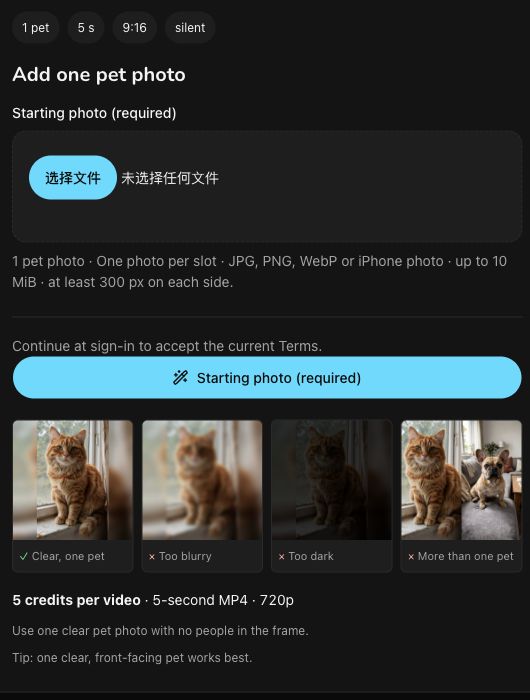
The actual empty input form, including the site’s photo guidance. This is not a generated result or an uploaded pet photo.
3. Add your photo and generate
Add your chosen image to Starting photo and confirm that you selected the intended picture. Select Generate when you are ready.
This is a fixed scene: there is no free-prompt field for changing the armor color or camera shot. Your starting photo is the main creative choice you make in the form.
While the task is processing, follow its existing status instead of repeatedly submitting it.
4. Watch the whole clip before saving
When the task finishes, look for Your knight cat AI video or visit My Videos. Play the full clip, including the final frame, before downloading the finished MP4.
Check whether your pet still looks recognizable as it moves. Pay attention to the face, ears and paws, plus the neck, armor and sword. The template aims to retain the pet’s face and coat, but AI can change appearance or anatomy. A thumbnail can miss an awkward movement or a feature that changes partway through.
5. Add a caption and share
In your own posting app, add a playful caption such as “Defender of the treat cupboard.” The exported clip is silent; you can optionally add audio you own or are licensed to use.
Label the video as an AI effect so friends understand that the fantasy action was generated. The caption and any added sound are finishing touches you make outside the template.
About this guide: Drafted by GPT-6.1 Terra, independently AI-edited and fact-reviewed by Codex before publication. Published by the AI Genjutsu operator. Interface checked on 16 November 2026. The illustration shows the real input UI. No new video generation, subject photo upload or output-quality test was performed.