

How to Make an Explosion Walk AI Video From a Pet Photo
Turn one pet photo into an explosion walk AI video. Choose a clear standing shot, use the fixed cinematic template, and review the silent clip before sharing.
Use a clear photo of your own pet to make a fictional action clip with AI Genjutsu’s Walk Away From the Explosion template. It produces a five-second, silent MP4 at 720p in vertical 9:16 format. The template supplies the background effect, so an ordinary photo taken somewhere your pet is comfortable is all you need. Keep real fire, explosions and staged danger out of the shoot.
Pick a standing photo with room around the paws
Choose one pet, standing and facing the camera, with its full body in view. Check the ears, paws and tail before you choose the photo. A favorite picture may look sharp on your phone and still cut off the feet at the bottom. Leave a little space around the outline, especially if the animal has a long tail or large ears.
Skip seated poses, group shots and photos that are dark, blurry or tightly cropped. If you’re taking a fresh picture, wait until your pet is standing normally in good light. Look at the photo at full size and check that you can see where the feet meet the floor. Use only your own pet and a photo you have the rights to use. Keep people out of the image. Users must be at least 18, and the service’s rules prohibit images of minors and public figures.
The template takes one photo per slot. Use a JPEG, PNG, WebP, HEIC or HEIF file up to 10 MiB. The image must be at least 300 pixels on each side.
Submit the photo through the fixed template
Open Walk Away From the Explosion. The template uses a fixed effect with no custom scene prompt. Your main choice here is the input photo.
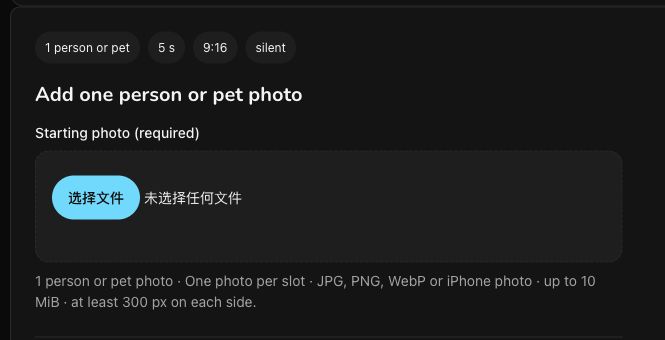
Interface screenshot, not a generated result.
If the template page shows Continue, follow it to sign-in. Read the current Terms there and upload a photo only if you choose to accept them. Add the photo and check that you picked the full-body shot you intended. This is easy to miss when several pictures from the same moment look alike in your photo library.
The template currently lists five credits per generation. Check the quote on the page before you submit the photo through the template’s generation action. Use the same account when you go back to check the result.
Check the existing task in My videos
Open My videos to see the task’s progress and access its result and download when available. If the task is still processing, check that same entry again later. Submitting the photo again would start a separate generation with its own displayed quote.
Once the result is available, watch it before deciding whether to keep it. If you’re considering another attempt, first identify anything you can improve in the source photo, such as a paw cropped at the edge or a face lost in shadow. A clearer source gives you a better reference when you evaluate the next clip. Check the new quote before submitting.
Watch all five seconds before sharing
Play the clip once at normal speed to see how it reads as a whole. Then replay it with your attention on your pet. Start with the face and silhouette. Can you still recognize the animal as it moves? Check the paws and tail through the middle of the clip, when you’re more likely to be looking at the background effect. Likeness, paw detail, walking motion and turns can vary.
Look at the background and final frame separately. If a sudden change pulls your eye away from the pet, replay that moment and decide whether it makes the clip hard to follow. Pause at the end and check that the animal is still visible and that the ending makes sense on its own. A clip can have a good opening and still be a poor choice to share if the last frame cuts the pet out of view.
If the clip works for you, download it. You can add a short caption and audio you have permission to use in your posting editor. Keep the caption clear of the pet as it moves, and label the clip as AI-created fiction. Give viewers enough context to understand the joke without implying a real incident or that an animal was in danger.
Frequently asked questions
Can I use a photo straight from an iPhone?
HEIC and HEIF are accepted, so you can use a photo in either format if it meets the file limits. Check both pixel dimensions if you’re using a crop. A 400-by-280-pixel image falls short even if the file is under 10 MiB.
Do I need a video of my pet walking?
A single standing photo is the input. Choose a front-facing, full-body shot with a clear view of the legs. Judge the walking and any turn in the finished clip, since the still photo cannot tell you how those movements will look.
Can I ask for a different background or scene?
This template supplies its own fictional background effect and has no custom scene prompt. You can change the story viewers read by adding your own caption in a posting editor after download.
Does the download include sound effects or music?
The MP4 is silent. If you add audio afterward, play the finished edit once with sound and once muted. A short caption can carry the setup for people watching with the sound off.
Disclosure. AI drafted, independently AI-edited and separately AI-checked this article for the AI Genjutsu operator. The interface and documentation were checked on 21 November 2026. The walkthrough involved no Terms acceptance, source photo upload, generation task, new video, or result-quality test.