

How to Make an AI Pet Doing Chores Video From a Photo
Make an AI pet doing chores video from one clear photo. Prepare the image, use the Pet Chores template, and review the silent vertical MP4 before sharing.
To make an AI pet doing chores video, start with one clear photo of your cat or dog. AI Genjutsu’s Pet Chores template is designed to put the animal at a kitchen sink, standing up and washing a plate. Pick a photo you can easily compare with the result, then watch the downloaded clip before deciding whether the fictional scene is ready to share.
Pick a photo for your AI pet doing chores video
Look for a front-facing photo with your pet’s face and full body visible. Use a picture of one pet with no people in the frame. Even light makes it easier to see the eyes and markings, and a clear outline helps you distinguish the pet’s body from the floor, furniture or bedding around it.
If you’re choosing between the close-up you love and a wider photo that shows the whole animal, start with the wider one. A dog sitting on a rug in daylight might give you a clear view of its chest markings and front paws. A photo of the same dog lying behind a sofa might show its face beautifully while hiding most of the body. Zoom in to check the eyes and fur for blur before picking the file.
If someone is standing at the edge of an otherwise good photo, see whether you can crop them out while keeping the whole pet in view. If a person is holding the animal or another pet overlaps it, choose a different shot. To take a fresh one, try getting down to the animal’s eye level and giving it room to sit or stand against a simple background.
Check the file after any crop. Pet Chores accepts JPG, PNG, WebP or an iPhone photo, up to 10 MiB, with at least 300 pixels on each side. Open the photo’s information panel if you’re unsure of the dimensions. A cropped image can look large on your screen and still be too narrow for the uploader. Keep the original so you can make a wider crop if needed.
If you’re picking a photo from a message thread, compare it with the original in your camera roll. The shared copy may have been reduced in size. The original can give you a better view of fine details, such as the edges of dark paws against a dark floor.
Upload the photo, check the quote and generate
-
Open the template. If you see a prompt to continue at sign-in, follow it and review the current Terms before proceeding. Pet Chores template
-
In Add one pet photo, use Starting photo to select your file. If your photo library contains several similar shots, check that you picked the full-body version.
-
Read the quote before you commit. The template currently lists 5 credits per video. Confirm the amount shown for your request. The listed output is a five-second, silent 720p MP4 in vertical 9:16 format.
-
Select Generate when you’re ready. The task area shows progress, and the page says you can leave and return to the same task.
-
Once the video is available, download the MP4 from your video history. My videos
The dishwashing scene and clip format are preset, with the photo as your input. The example on the template page shows the intended action.
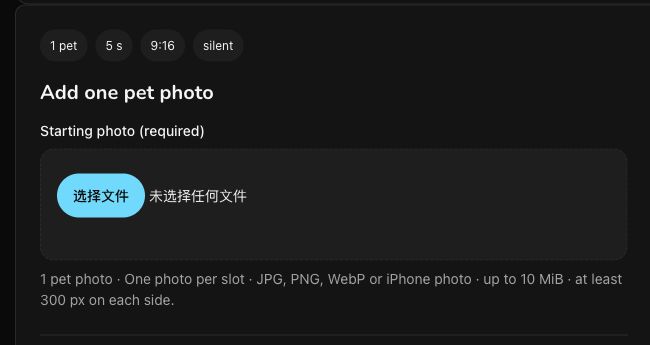
Screenshot of the Pet Chores upload area before a photo was selected. No video was generated for this view.
Watch the download twice
Play the file through at normal speed first. See if you recognize your pet and can tell what it’s doing in one viewing. You may notice the dishwashing action right away, or find that a shifting background draws your eye elsewhere. Your first impression is a useful check on whether the scene reads clearly.
On the second pass, compare the clip with the original photo. Pick a couple of features you’d recognize instantly, such as a dark patch over one eye, the shape of the ears or the color of the chest. Watch those details as your pet moves. A convincing first frame can still give way to a face or body that feels unfamiliar later in the clip.
Then follow the paws and plate. Look at where they meet and whether you can track the plate as it moves. If something catches your eye, pause around that moment and see whether a paw blends into the plate, the plate changes shape or part of the sink shifts between frames. Check the transitions and the last frame, too. Judge those moments at normal speed before deciding how much they matter to you.
Decide whether a different photo is worth trying
Your pet is recognizable and the action is clear. Keep the download if the scene works for the people you want to send it to. A playful clip for someone who knows your pet may need only a short note to give it context.
The likeness drifts. Compare the changed feature with the source. If the pet’s ears were in shadow or its markings were blurry, look for a sharper shot where those features are easier to see. Even with a clearer photo, the generated clip can still change features. Review the current quote before generating again.
The plate or paws are hard to follow. Look for a source with the pet’s body and front paws easy to distinguish from its surroundings. If the original already meets that description, decide whether you’d still enjoy sharing the clip as it is. Set it aside if the invented action is hard to read.
Check the version you plan to share
For a quick message, send the MP4 with a line that makes clear the scene is AI-generated. If you want to place text or sound inside the video, add it in a separate editor after downloading. Keep a clean copy so you can make another version without redoing the generation step.
Play the final file once more and preview it where you plan to share it. Check that any caption is readable and that the destination’s crop or onscreen controls leave the face and plate visible. Put the AI disclosure in the accompanying text if it’s easier to read there.
If you get stuck
Can I use a collage of two photos of the same pet? Choose a single, full-body view for the starting photo. If one shot has a sharp face and another shows more of the body, look for a shot that does both or take a new one in even light.
The photo picker rejects the file. Check the dimensions and size of the actual file you selected. If the cropped copy is too small, go back to the original and crop less tightly. If you need to change the file format, export a copy in one of the listed formats and check that copy before trying to upload it.
You’ve left the page or can’t find a download. Reopen the existing task in My videos and check its status before starting another one. If it shows an error, read the message before deciding whether a new request makes sense.
Disclosure: This AI Genjutsu-operated guide was AI-drafted with GPT-6.1 Terra, independently AI-edited and fact-checked with GPT-6.2 Sol. Only the current public interface was inspected; no new image or video generation or end-to-end result tests were performed.