

How to Make an Absolute Cinema Meme From a Pet Photo
Make an Absolute Cinema meme from one pet photo: prepare the image, use the AI video template, review the gesture, and add your own reaction caption.
AI Genjutsu’s Absolute Cinema template uses one starting photo to create a black-and-white animation with an arms-up cinema gesture. For a pet photo, treat that gesture as a creative interpretation: the useful question is whether the clip suits the reaction you want to post.
1. Plan your Absolute Cinema meme
Before spending credits, decide what your pet is reacting to: dinner arriving, the treat bag opening or a favorite sunny spot. Keep the joke short enough to make sense in a five-second clip. Starting with the reaction helps you choose a photo whose expression fits it.
Pick a front-facing photo of one clearly visible pet, with a readable expression, an uncluttered background and space around its upper body and shoulders for the transformed gesture. Avoid groups, covered faces, dark scenes and tiny subjects. If several photos fit, choose the one whose expression already matches the joke; the caption should not need a long explanation.
If the pet is too small or the scene is crowded, choose another photo with one clear subject. For blur, darkness or a hidden face, take a clearer, well-lit photo. Cropping cannot restore blurred detail; avoid a tight crop that removes room around the shoulders.
2. Open the template and add your photo
Visit the Absolute Cinema AI template. If sign-in or a Terms notice appears, complete those steps yourself before uploading.
Check your file: the template accepts JPG, PNG, WebP and iPhone HEIC/HEIF, up to 10 MiB, with each side at least 300 pixels. Use the required Starting photo control to select it. The template takes one photo of one person or pet; for this guide, use one pet. You don’t need the original meme image or an extra actor.
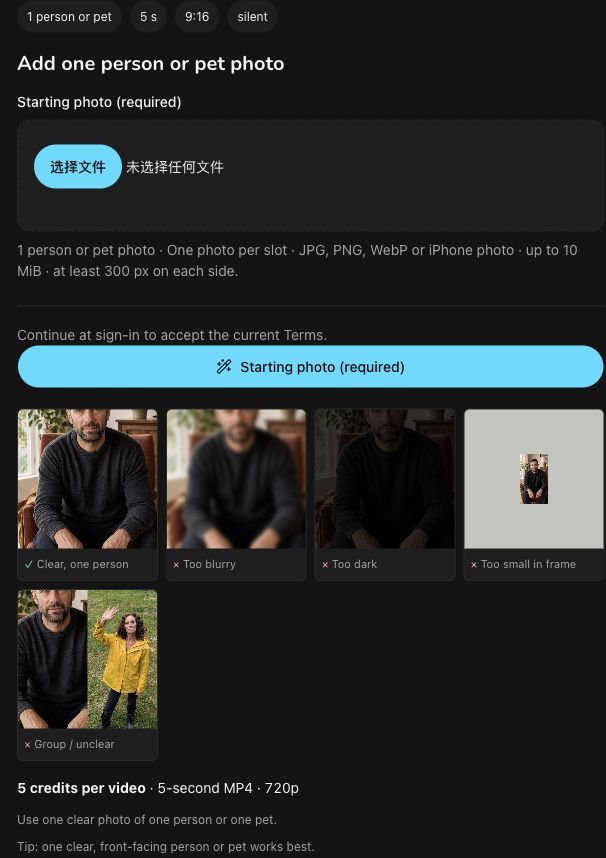
The real empty input form with built-in guidance photos, not a generated pet result.
3. Check the settings and start
Recheck the panel and credit quote before selecting Generate when ready. On 15 November 2026, the listed models were Seedance 2.0 Mini + Seedream 5.0 Flash, with a 5-credit quote. Settings and quotes may change.
The stated output was a five-second, silent MP4 at 720p in vertical 9:16 format. Plan around that short portrait format: keep the reaction simple, and leave any caption or music for your own posting app.
4. Watch the whole clip
Follow progress in Your absolute cinema AI video; you can leave and return to the same task. Once it finishes, watch the whole clip rather than judging a single frame.
Check the face, ears, limbs, gesture and transitions. AI animation may change your pet’s features or produce unnatural anatomy, so decide whether those changes distract from the joke.
Preview at phone size too, checking that the expression and gesture still read clearly. If the source photo gave the pet little space or an unclear face, choose a better starting photo before spending credits on another attempt.
5. Download and add your reaction
Download the finished MP4 from My Videos, then play the downloaded file locally to check it from beginning to end.
In your own posting app, add a short caption that supplies the situation while the gesture supplies the reaction. For example: “When the treat bag opens,” “Dinner deserves a standing ovation,” or “My review of the sunny spot.” Choose one that fits your pet and your joke.
Preview the caption at phone size so it stays readable without covering the pet’s face or gesture. Add music there if you wish; the template’s stated output is silent. Label the clip as AI-generated so viewers understand it is not real footage.
About this guide: Drafted by GPT-6.1 Terra, independently AI-edited and fact-reviewed by Codex, and published by the product operator. The interface was checked on 15 November 2026; the figure shows the real empty input form. No subject photo was uploaded, Terms accepted, new video generated, purchase made or output quality tested.